Introduction
One of the key challenges for organisations who want to use Generative AI is hallucination – the fact that Large Language Models (LLMs) sometimes make up content that isn’t true. This is where grounding comes into play: Google Cloud just recently released new grounding features that help organisations to ground the LLM responses to their own data, thus reducing the risk of hallucinations substantially.
This feature is excellent, but it currently works only on text documents. However, since Gemini 1.5 Pro came out, organisations also want to increasingly use its multimodal features. For example, organisations might want to upload a presentation including lots of graphical charts like the one below and ask something like "What was our track record on growth 2017–2023? Please show related graphical chart".

This is the power of multimodal citations, a novel approach that transforms the way we interact with AI systems. Traditionally, AI chatbots have relied solely on text-based responses, often leaving users to wonder about the source and validity of the information presented. Multimodal citations address this limitation by incorporating visual elements like images, charts, and graphs, creating a more engaging, transparent, and trustworthy experience.
And these multimodal citations are not only restricted to images – they can also be used for audio and video. Imagine, for example, a scenario where Gemini 1.5 Pro analyses an investor call and a chatbot not only answer the user’s query but also presents the relevant audio snippet along with it.
What is this about?
In this tutorial project we’ll be building a GenAI chatbot based on Gemini 1.5 Pro that integrates multimodal citations into its responses. Specifically, our application focuses on using images as citations, providing users with visual evidence to support the information conveyed through text.
The Google Cloud components used for this solution are:
- Gemini models (1.0 Pro and 1.5 Pro)
- Google Cloud Storage
- Vertex AI Vector Search
- Vertex AI multimodal embeddings model
The example demonstrated in this tutorial revolves around a company’s investor presentation. Imagine you’re interested in learning about a specific company and have access to this chatbot. You could ask questions like, "What were the company’s key achievements last year?" or "How has the company’s stock price performed over the past five years?". The chatbot would not only provide textual answers but also present relevant charts or graphs from the investor presentation as visual citations. This allows you to quickly grasp the information and verify the basis of the chatbot’s responses.
As usual, all the code is freely available under the CC BY-NC-SA 4.0 license on https://github.com/marshmellow77/vertexai-multimodal-citations.
Why is this important?
The integration of multimodal citations into AI systems, like our chatbot that we will build, is important for several reasons:
- Enhanced User Engagement and Understanding: Visual elements like images and charts are often easier to process and remember than text alone. By providing visual citations, AI systems can improve user engagement and facilitate a deeper understanding of the information presented.
- Improved Trust and Transparency: Multimodal citations allow users to trace the source of information and verify the factual basis of AI-generated responses. This transparency fosters trust in AI systems and mitigates concerns about misinformation or bias.
- Efficient Information Delivery: A picture is worth a thousand words, and this holds true for multimodal citations. Complex data or trends can be conveyed much more effectively through a chart or graph, saving users time and effort in interpreting textual information.
- Elevated User Experience: Multimodal interactions are simply more engaging and enjoyable. The combination of text and visuals creates a richer and more interactive experience, making AI systems more user-friendly and appealing.
The potential applications of this technology extend far beyond the example presented. Imagine educational tools that provide students with interactive diagrams and images to support learning, customer service chatbots that offer visual guides for troubleshooting, or research assistants that present data visualisations alongside textual summaries.
System Architecture
Let’s start with the architecture of the application we will be building. This might look a bit overwhelming at first, but it will become all much clearer once we have gone through the individual steps (or so I hope 🙈 ).

Let’s break this down step by step:
Document pre-processing
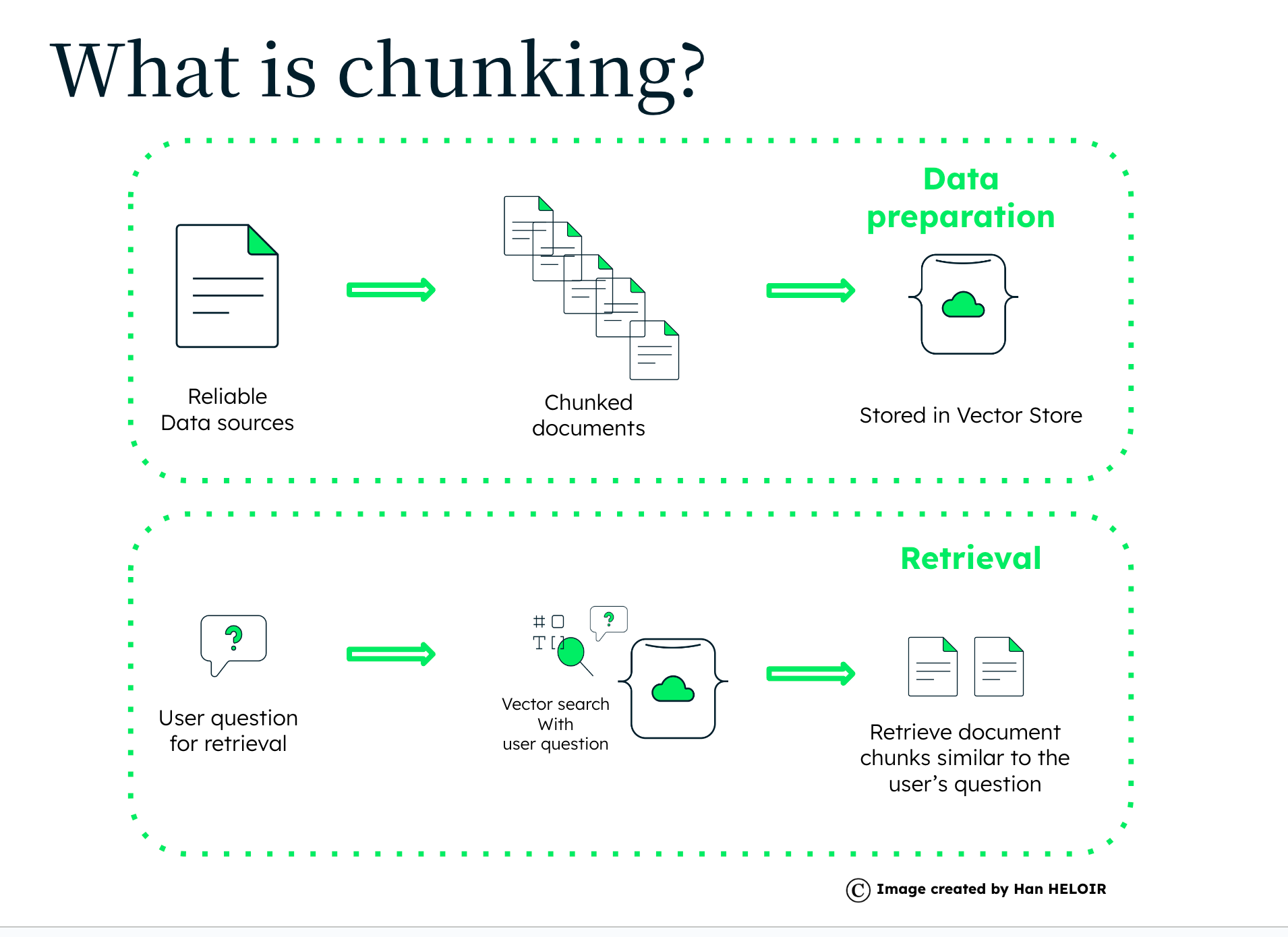
Before the user can interact with the chatbot some document processing is required. First, the pdf document itself will be uploaded to Google Cloud Storage (GCS). Then the pdf will be split into individual pages and these will be converted into images and also stored in GCS. Finally, the multimodal embedding model will create embeddings for each page and store them in Vertex AI Vector Search.
Chatbot interaction
Once the index endpoint is deployed the application will be able to pull the most relevant image from GCS. To do it will
- Identify if the user wants to see an image (slide, chart, etc)
- If yes, create an embedding for the query
- Finds the image that matches the query the best
- Downloads the corresponding image from GCS
- Displays it in the UI
In the sections below we will dive deeper into these individual steps.
Document pre-processing
Before the chatbot can work its magic with multimodal citations, some initial document processing is required. Let’s break down the steps involved in preparing the data:
1. PDF Upload and Splitting:
The process begins with uploading the original document, which in this case is a PDF, to Google Cloud Storage (GCS). GCS provides a scalable and secure storage solution for our application. This is where the chatbot application will retrieve the document later to answer the user’s queries.
2. Image Conversion and Storage:
After that we will convert each page of a PDF to a PNG image and upload them to Google Cloud Storage as well. To do so we use the pdf2image module which will require you to have the Poppler program installed. Once installed we can leverage pdf2image like so:
pages = convert_from_path(
    pdf_path,
    dpi=dpi,
    poppler_path=r"/opt/homebrew/Cellar/poppler/24.04.0/bin",
)
We can then upload the individual images to GCS. To keep everything tidy I’d recommend a folder structure like this:

3. Generating Image Embeddings:
This is where the magic of Vertex AI’s Multimodal embeddings model comes in. Each image is processed by the embedding model, which extracts the visual essence of the image and represents it as a vector of numbers – an embedding. This embedding captures the semantic meaning of the image, allowing the system to understand its content and compare it to other images:
def get_image_embeddings(image_path):
    model = MultiModalEmbeddingModel.from_pretrained("multimodalembedding")
    embeddings = model.get_embeddings(image=image_path)
    return embeddings
4. Building the Vector Search Index:
The generated image embeddings, along with their corresponding filenames, are stored in a Vertex’ vector database Vertex AI Vector Search. This database is optimised for similarity search, meaning it can efficiently find the images that are most similar to a given query embedding.
With these steps completed, the data is prepped and ready for the chatbot to retrieve and present relevant image citations during user interactions. Let’s have a look on how to build a GenAI chatbot powered by Gemini 1.5 Pro to interact with our documents.
Chatbot
Once the document is processed and the image embeddings are stored in the Vector Search index, the chatbot application is ready to engage with users. We can leverage Streamlit to build a straightforward chatbot that will answer the user’s question, just like a regular chatbot. But in our application we will add a twist: We will recognise if the user wants to see an image to be more confident about the model’s response.
Let’s explore how the chatbot interacts with users and retrieves relevant image citations:
1. User Input and Query Analysis:
First we need to determine whether the user wants to see an image with their user query. This is done within the image_requested() method in the utils.py file. This function takes the user’s query as input and uses a Gemini 1.0 Pro (which is faster and sufficient for this purpose):
def image_requested(query):
    prompt = f"""Given the user query below, decide whether the user requested to see a chart:

Respond only with `True` or `False`.

<question>
{query}
</question>

Decision:"""

    model = GenerativeModel("gemini-1.0-pro")

    try:
        response = model.generate_content(prompt)
        response_text = response.candidates[0].text.strip()

        if response_text.lower() == "true":
            return True
        elif response_text.lower() == "false":
            return False
        else:
            raise ValueError("Model response was not 'True' or 'False'")
    except Exception as e:
        print(f"Error with model: {e}")
        return False  # Default to not showing an image if the model fails
First we construct a prompt specifically designed to elicit a binary response from another AI model. The prompt includes the user’s query and asks the model to decide whether the user wants to see a chart based on that query. The function then parses the model’s response and returns True if the model indicates the user wants a chart, and False otherwise.
If the model predicts that the user wants to see an image, we will add an extra item to the displayed chat interaction like so:
if image_requested(prompt):
    st.session_state.messages.append(
        {"role": "image", "content": get_gcs_location_for_query(prompt)}
    )
2. Generating the Query Embedding:
If the application determines that the user wants an image, it generates a query embedding using the same multimodal embedding model used for the images. This embedding captures the semantic meaning of the user’s query, allowing the system to compare it to the image embeddings in the Vector Search index.
3. Searching the Vector Search Index:
The query embedding is then used to search the Vector Search index for the most similar image embeddings. The index efficiently retrieves the top matching results, which correspond to the images that are most semantically related to the user’s query.
def get_query_embedding(query: str):
    model = MultiModalEmbeddingModel.from_pretrained("multimodalembedding")
    embeddings = model.get_embeddings(contextual_text=query)
    return embeddings.text_embedding

def get_gcs_location_for_query(query: str):
    # Generate query embedding
    query_embedding = get_query_embedding(query)

    # Configure Vector Search client
    client_options = {"api_endpoint": os.getenv("API_ENDPOINT")}
    vector_search_client = aiplatform_v1.MatchServiceClient(
        client_options=client_options
    )

    # Build FindNeighborsRequest object
    datapoint = aiplatform_v1.IndexDatapoint(feature_vector=query_embedding)
    query = aiplatform_v1.FindNeighborsRequest.Query(
        datapoint=datapoint, neighbor_count=10
    )
    request = aiplatform_v1.FindNeighborsRequest(
        index_endpoint=os.getenv("INDEX_ENDPOINT"),
        deployed_index_id=os.getenv("DEPLOYED_INDEX_ID"),
        queries=[query],
        return_full_datapoint=True,
    )

    # Execute the request
    response = vector_search_client.find_neighbors(request)

    # Extract the filename from the response (only first result is used here)
    filename = response.nearest_neighbors[0].neighbors[0].datapoint.datapoint_id
    filename = filename.split("'")[1]

    gcs_path = f"{os.getenv('GS_PATH')}/{filename}"

    return gcs_path
4. Retrieving the Image from GCS:
Based on the top result from the Vector Search, the application identifies the filename of the most relevant image. Using this filename, it retrieves the corresponding image file from Google Cloud Storage.
def download_blob(full_gcs_path):
    """Downloads a blob from the bucket using a full GCS path."""
    if not full_gcs_path.startswith("gs://"):
        raise ValueError("Provided path does not look like a GCS path")

    # Parse the GCS path to extract bucket name and blob name
    parts = full_gcs_path.split("/", 3)
    bucket_name = parts[2]
    blob_name = parts[3]

    # Initialize the Google Cloud Storage client and download the blob
    storage_client = storage.Client()
    bucket = storage_client.bucket(bucket_name)
    blob = bucket.blob(blob_name)
    return blob.download_as_bytes()
5. Displaying the Image Citation:
Finally, the retrieved image is displayed within the chat interface alongside the chatbot’s textual response. This provides the user with a visual citation that supports and enriches the information conveyed through text.
# Display chat messages from history on app rerun
for message in st.session_state.messages:
    if message["role"] == "image":
        image_bytes = download_blob(message["content"])
        image = Image.open(io.BytesIO(image_bytes))
        st.image(image, width=800)
        continue
    with st.chat_message(message["role"]):
        st.markdown(message["content"])
This process allows the chatbot to dynamically retrieve and present relevant images based on user queries, creating a more interactive and informative experience.
Testing
Now that we have the chatbot up and running, let’s test it!
We will use the investor presentation from the public website of the Deutsche Börse Group (DBG). This is a good example because it has many charts that convey data to the user. We will use Gemini 1.5 Pro to answer questions since it is fully multimodal.
First we ask a question only about DBG’s growth without requesting a chart:

As we can see, the model responds correctly with information retrieved from the presentation, but doesn’t show the a chart since we didn’t request one.
Now let’s ask the same question and also ask for the relevant chart:

Let’s try a different question just to make sure that the image retrieval works properly:

Great, it looks our solution is working properly! 😃
Conclusion
Multimodal citations represent a paradigm shift in how we interact with AI systems. By seamlessly integrating visual elements like images, charts, and graphs into the conversational experience, we unlock a new level of engagement, transparency, and trust. The project we explored in this blog post demonstrates the power of this approach. This multimodal experience not only enhances understanding but also creates confidence for the user in the information provided by the AI system.
With the rise of more multimodal LLMs like Gemini 1.5 Pro the role of multimodal citations will only become more crucial. By bridging the gap between text and visual information, we can create AI systems that are more accessible, intuitive, and trustworthy. This tutorial project serves as a starting point for exploring the exciting world of multimodal citations, inspiring further innovation and exploration in this rapidly advancing domain.
Limitations and potential ideas on how to improve the solution
This is a bare-bone example and there are many ways to continue and improve it, which I will leave up to the readers. Some ideas include:
- Including other modalities (audio, video)
- Implementing UI element in which the user can indicate that they want to see a multimodal citation (might be easier for the user and definitely more reliable for the architecture)
- Introducing a similarity threshold: Right now the app will always retrieve an image if the user requests one, even if the similarity score is low. It would be better to introduce a threshold value below which no image will be displayed.
- Adding more documents. This example handles only one document. We could enhance the solution to handle several documents. This would involve identifying and retrieving the relevant document first (RAG style) and also accessing only the image embeddings related to that document.
Heiko Hotz
👋 Follow me on Medium and LinkedIn to read more about Generative AI, Machine Learning, and Natural Language Processing.
👥 If you’re based in London join one of our NLP London Meetups.